



01 Creating Multi-variation Listings
Multi-Variation Listing
Sellers could manage multiple variations of a product including different colors and sizes.
1. How to create a multi-variation listing?
2. How to create multi-variations in bulk?
|
1. How to create multi-variation listing? |
|
|
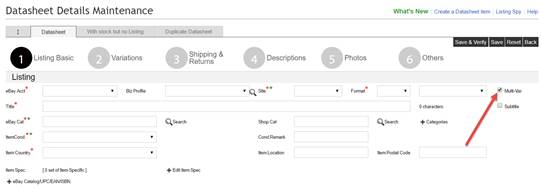
I. Check the<Multi-Var.>option in a new datasheet.
II. The second section will be changed from <Item & Price> to <Variations>.
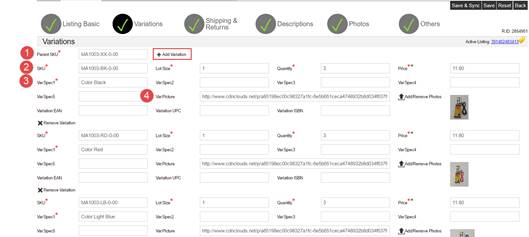
III. Information that required for a multi-variation listing:
i. Parent SKU:A placeholder for the product variation of the listing *Different from any of the product SKU ii. Product SKU:Actual inventory of the products * Every product SKU should exclusive
iii. Var Spec:The variation details that vary and use common words that buyers usually search, such as color and size. *Format should be XX:YY XX represents the attribute names. YY represents the value. For example, Colour: Red
For example: 1st SKU Var spec1 à Color: Red 2nd SKU Var spec1 à Color: Blue
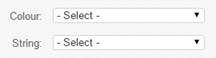
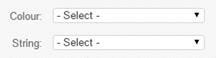
If more than one variation detail is required for the product (such as Color and String), input the variation details to Var Spec1and Var Spec2respectively For example: 1st SKU Var spec1 à Colour: Red 1st SKU Var spec2 à String: Single-sided 2nd SKU Var spec1 à Colour: Blue 2nd SKU Var spec2 à String: Single-sided *Every variation detail set should be unique iv. Variation picture: Please note that variations photos change according to <var spec 1>
|
|
|
2. How to create multi-variation listing in bulk? |
|
|
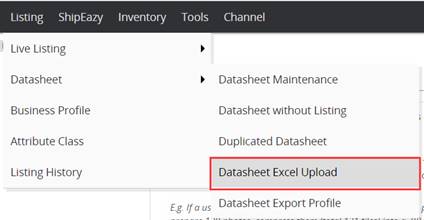
I. Login to SoldEazy. Go to Datasheet > Datasheet Upload
II. Download a listing sample for multi-variation items <Multi-variation Listing>
III. You may take the sample listings in the spreadsheet as reference.
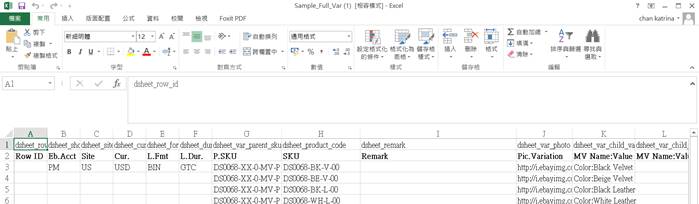
IV. Columns in the spreadsheets are same as the columns in the system.
Column (Row ID): Input the datasheet row id that requires revision. Leave it blank for new products. Column(P.SKU): A placeholder for the product variation of the listing *Different from any of the product SKU Column Pic Variation):Variation picture. A product photo for each variation. Column(MV Name: Value Pair 1):Correspond to Var Spec1in the system. If more than one variation detail is required for the product (such as Color and String), input the variation details to Var Spec1and Var Spec2respectively
For example: 1st SKU Var spec1 à Color: Red 2nd SKU Var spec1 à Color: Blue
If more than one variation detail is required for the product (such as Color and String), input the variation details to Var Spec1and Var Spec2respectively For example: 1st SKU Var spec1 à Colour: Red 1st SKU Var spec2 à String: Single-sided 2nd SKU Var spec1 à Colour: Blue 2nd SKU Var spec2 à String: Single-sided *Every variation detail set should be unique
Column(Lot):Number of items that buyers can receive if they place an order for the listing. It should be specified for every SKU Column(QTY):The quantity of the products that displayed in the listing. It should be specified for every SKU Column(Price):Price for each SKU. It should be specified for every SKU Column(EOP):Notify the system that it is the end the listing
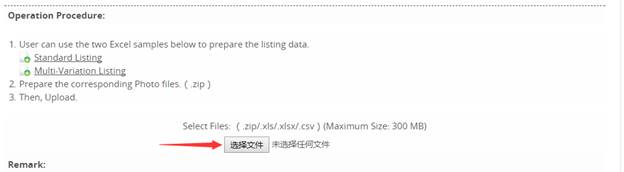
v. Save and Upload to SoldEazy if finished editing Upload the excel file in the above section. (Without uploading any photos) Upload zip folder in the below section. (Including product photos)
vi. You may find the datasheet in Datasheet Maintenance after the upload job is done.
|
|



** End **
 Print Article
 Email Article to Friend
 Export to PDF